 Keet Support
Contact Book 📓
The Contact Book lets you privately save and manage known peers inside the app, making it easier to find people and start conversations when needed.
Unlike DMs, contacts are personal and one-way — adding someone to your Contact Book does not require their approval and does not automatically create a chat with them. This works similarly to saving a phone number in your phone’s contact app, where you decide who appears in the list.
What is the Contact Book?
The Contact Book is a private list of users you choose to save for later access.
You can:
- Save users as contacts
- Search and manage your contacts
- Give a contact an alias that only you can see
- Quickly start a DM request from your Contact Book
- Keep contacts synced across linked devices
Your contacts are stored locally on your device to help maintain privacy.
How to Add a Contact
You can add contacts in several ways:
- Add users directly from the Contact Book screen by searching for a username manually or scanning the profile QR code
- Select any user from the group member list and select 'Add Contact' on their profile page
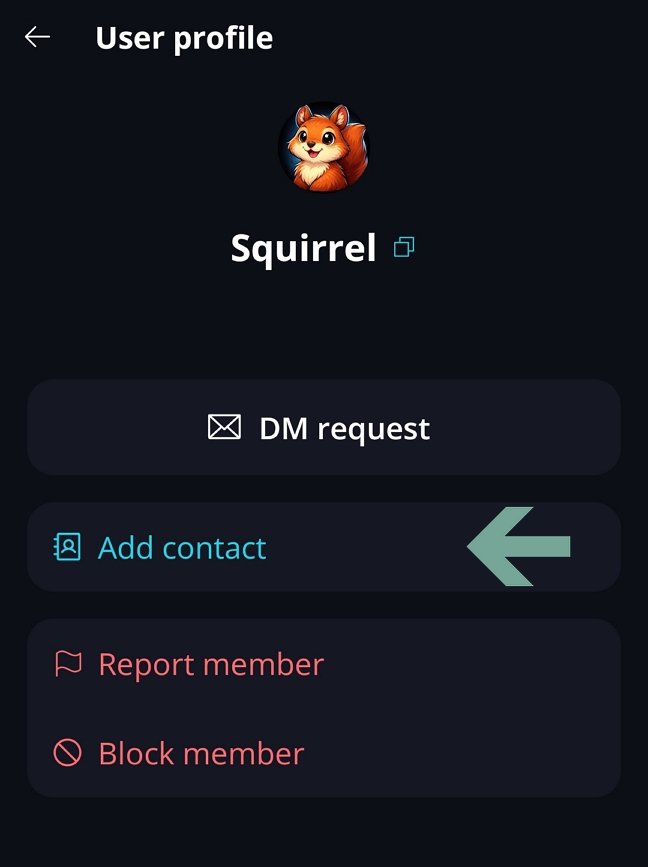
Once added, the contact appears in your Contact Book immediately.
Viewing Your Contacts
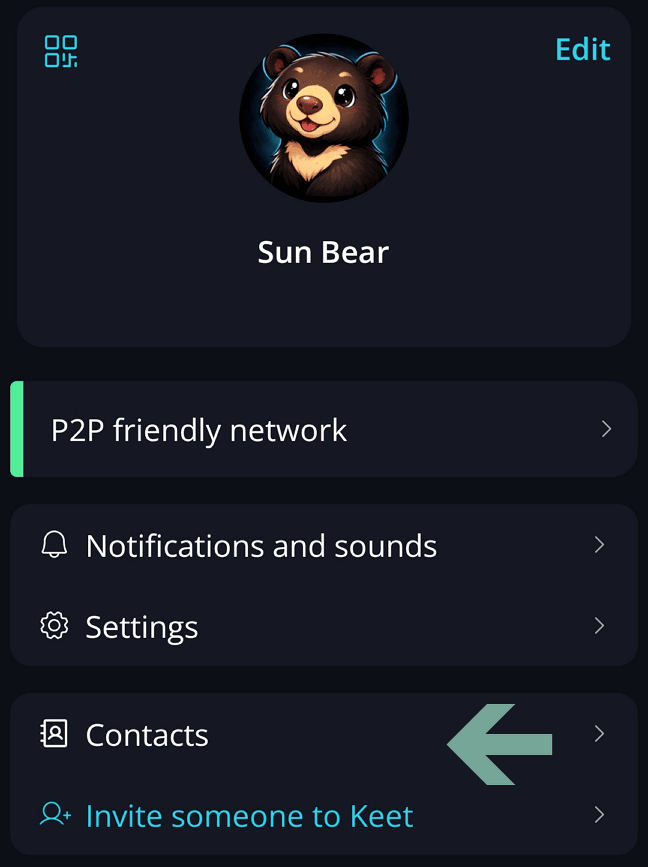
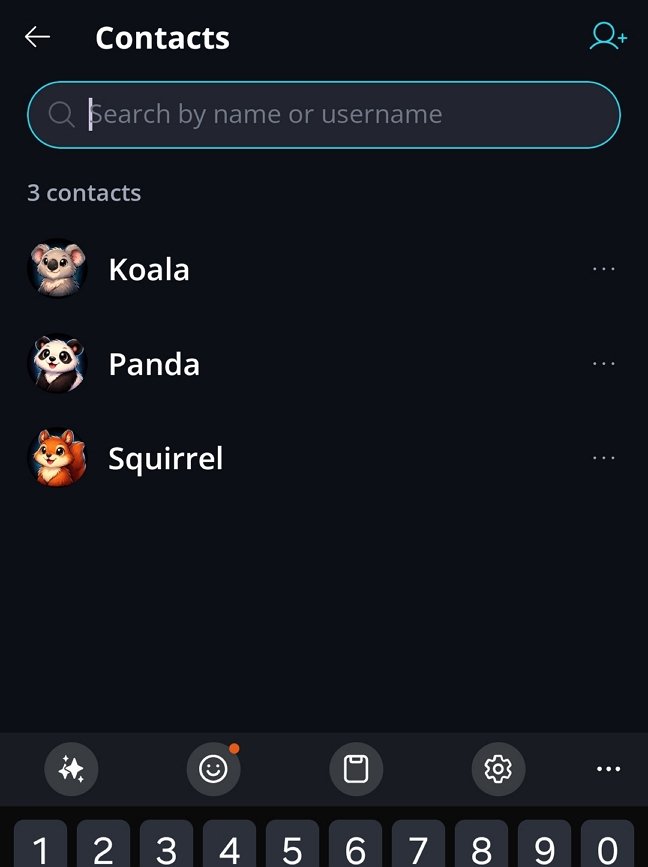
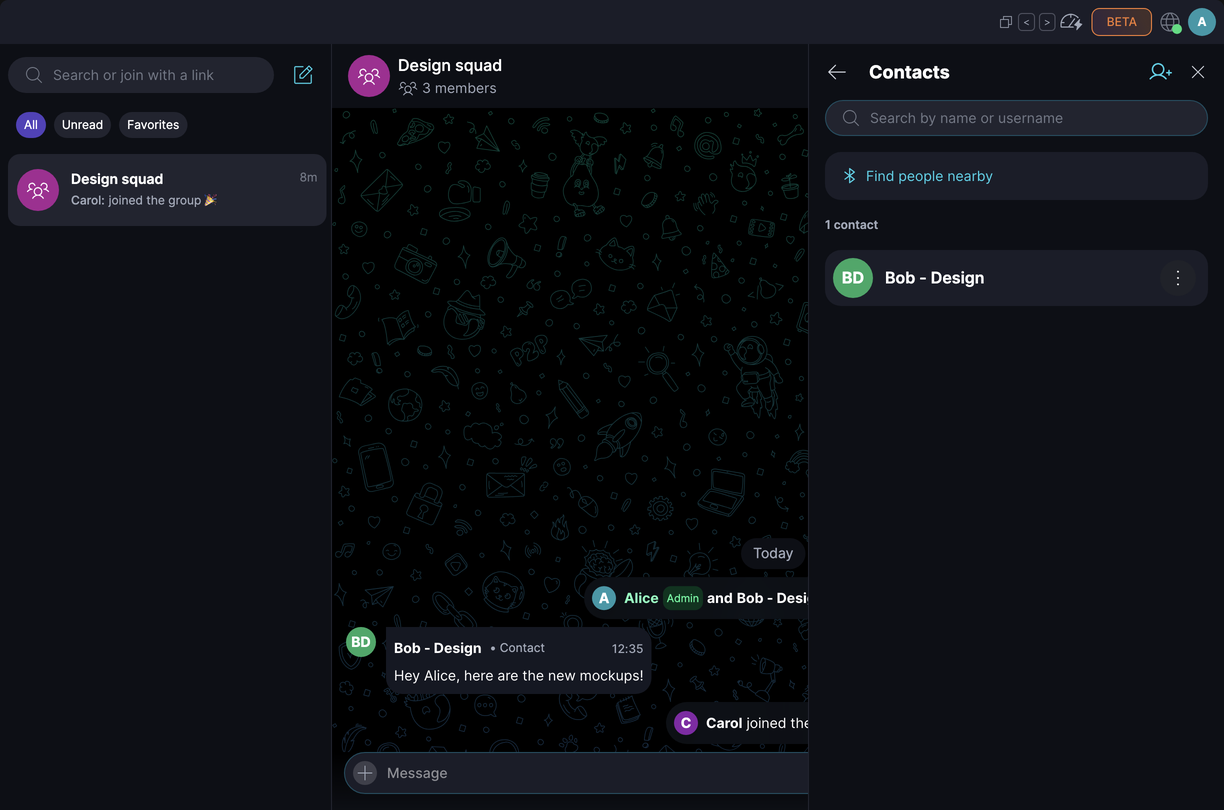
Go to Profile / Contacts to view all saved contacts.
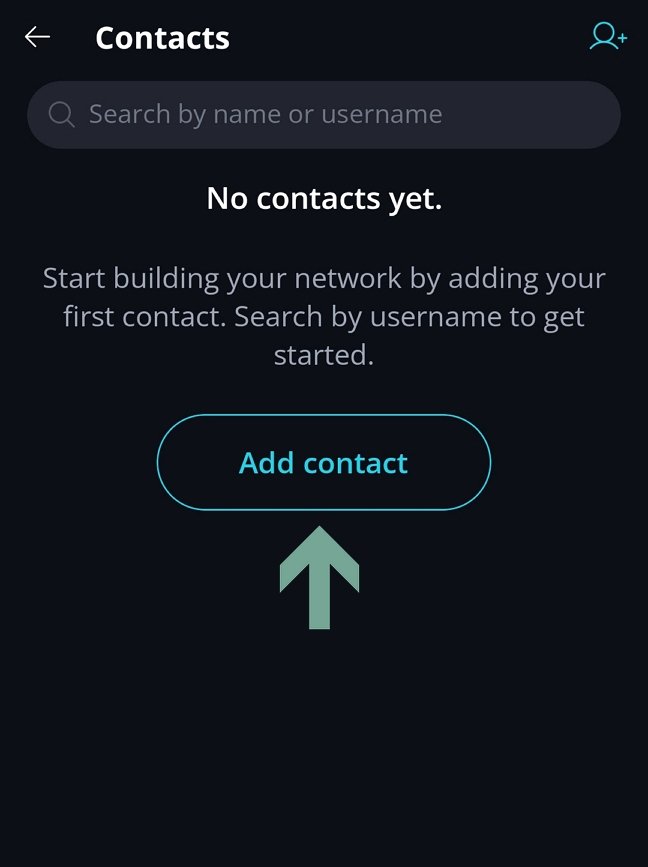
If you don't have contacts yet, click 'Add contact' button and search for peers by their username or scan their QR profile code.
Searching Contacts
You can search within your Contact Book using:
- Display name
- Username
- Alias, if you've set one
Giving a Contact an Alias
An alias is a custom name for a contact that only you can see. Once you set one, Keet shows it instead of the contact's public display name in most places they appear for you, so you can always recognize them, even if they change their own name later.
Only saved contacts can have an alias. If someone isn't in your Contact Book yet, add them first.
-
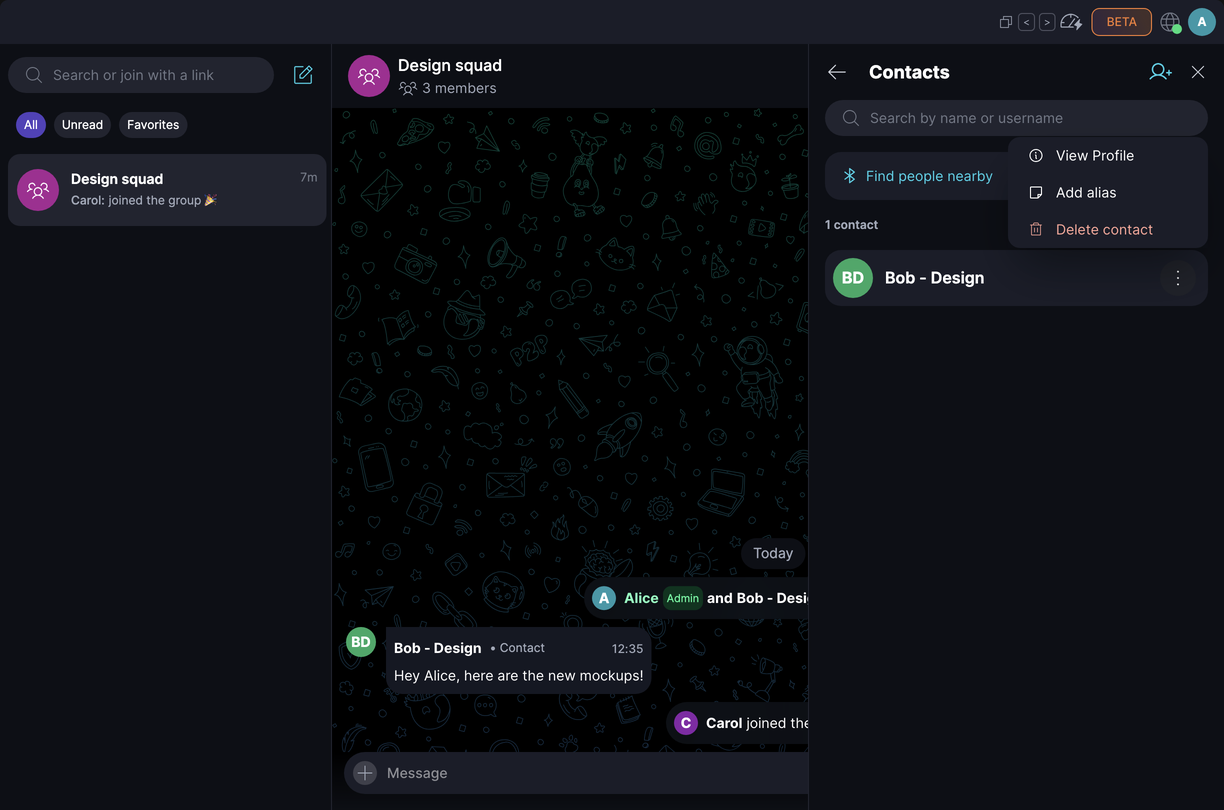
Go to 'Profile' / 'Contacts', open the three-dot menu next to the contact, and choose 'Add alias':
-
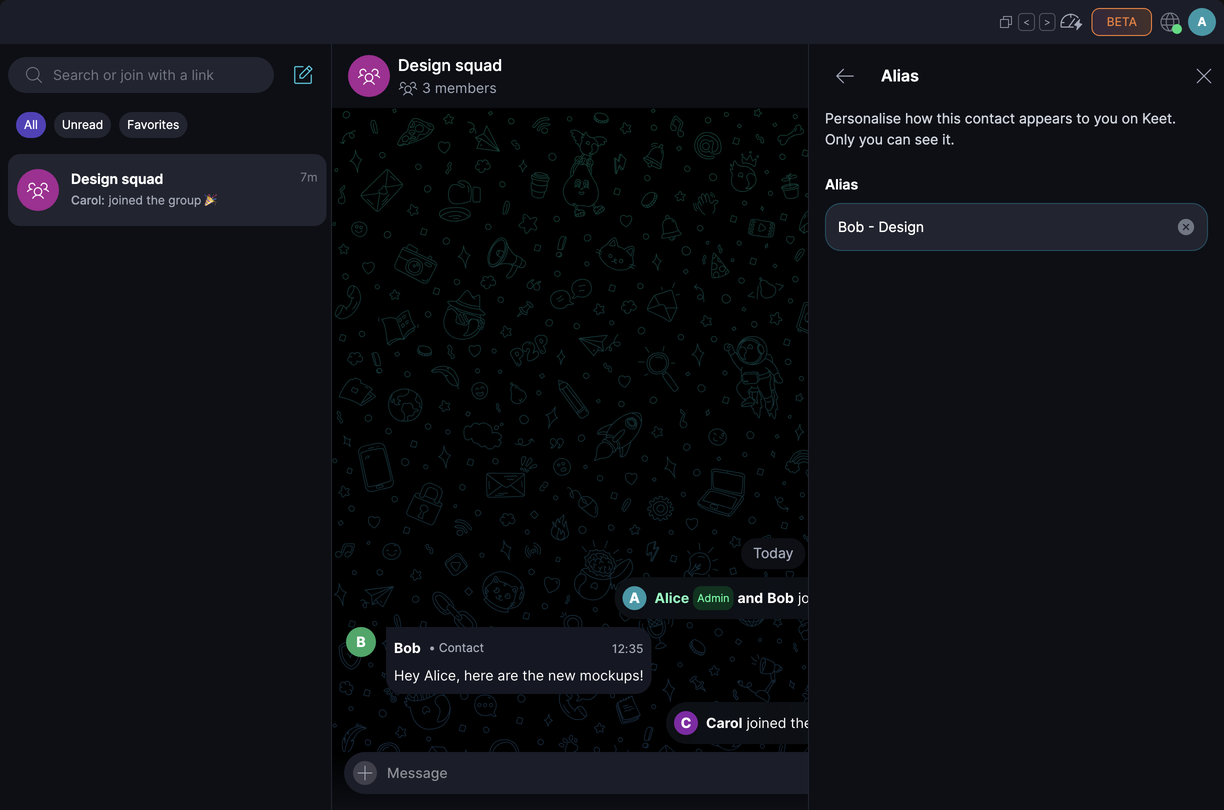
Type a name in 'Alias' (up to 22 characters) and select 'Save'.
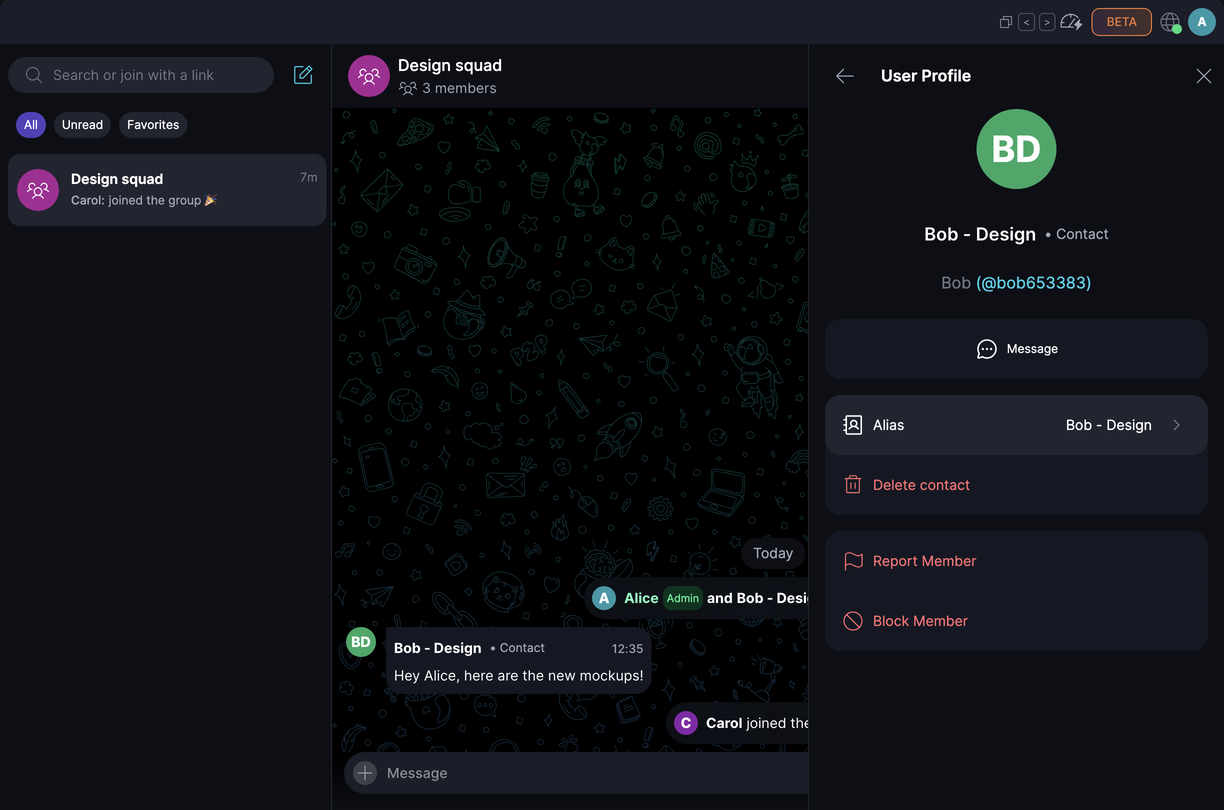
You can also open the contact's profile, from the Contact Book or from a group's member list, and select 'Alias'. Type the name, then press Enter or go back to save it:
-
Go to 'Profile' / 'Contacts', tap the three-dot menu next to the contact, and choose 'Add alias':
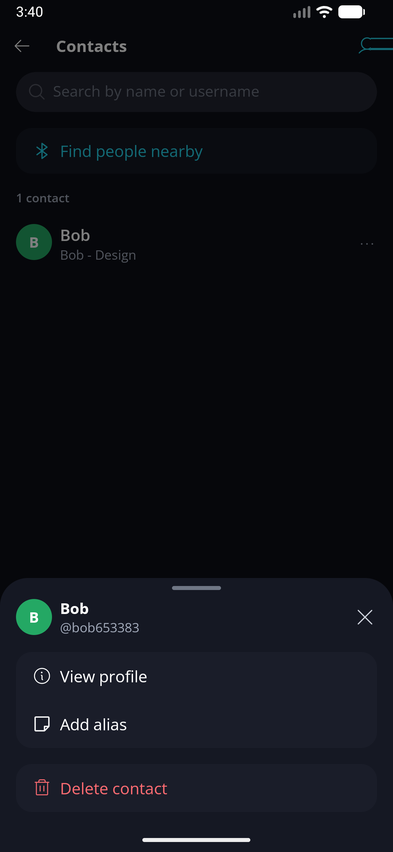
-
Enter a name in 'Alias' (up to 22 characters) and tap 'Save':
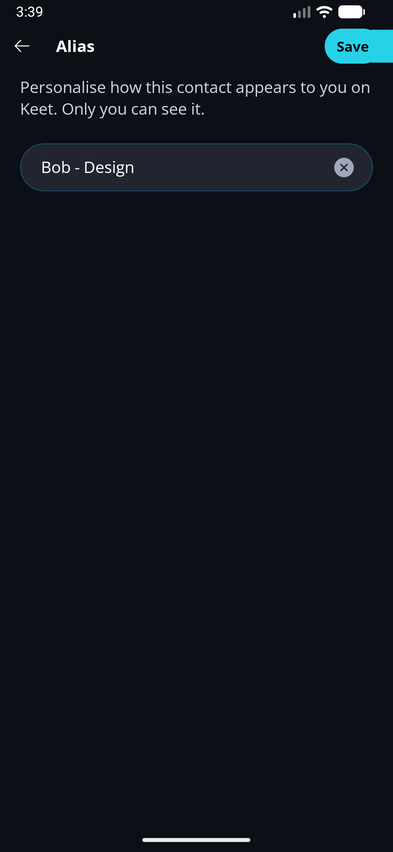
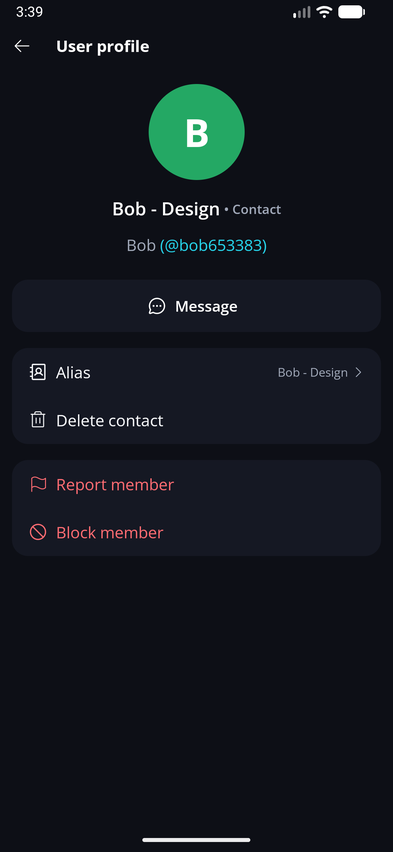
You can also open the contact's profile, from the Contact Book or from a group's member list, and tap 'Alias'.
The contact's profile now shows your alias as their name, with their public display name and @username underneath:
To change an alias, follow the same steps and edit the name. To remove it, clear the field and save - the contact's public display name shows again.
Where does the alias show?
Your alias becomes the contact's main name in places like:
- Your chat list and the header of your 1:1 chat
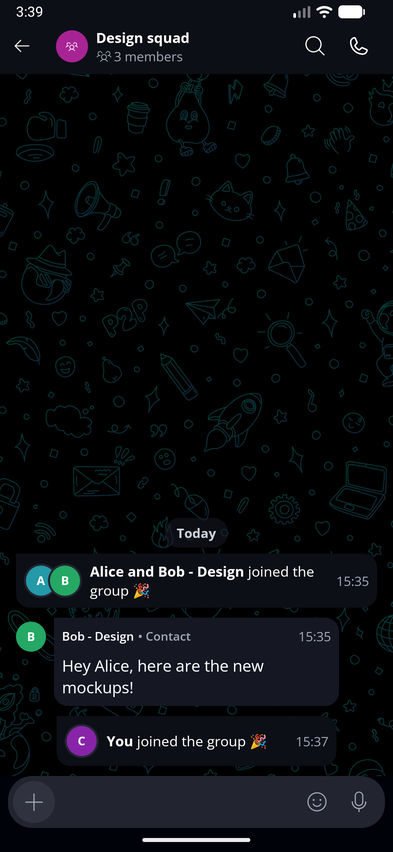
- Sender names on their messages in groups, and in group activity such as 'joined the group'
- Mentions, which appear as @Alias
- Notifications that show the contact's name
- The contact's profile
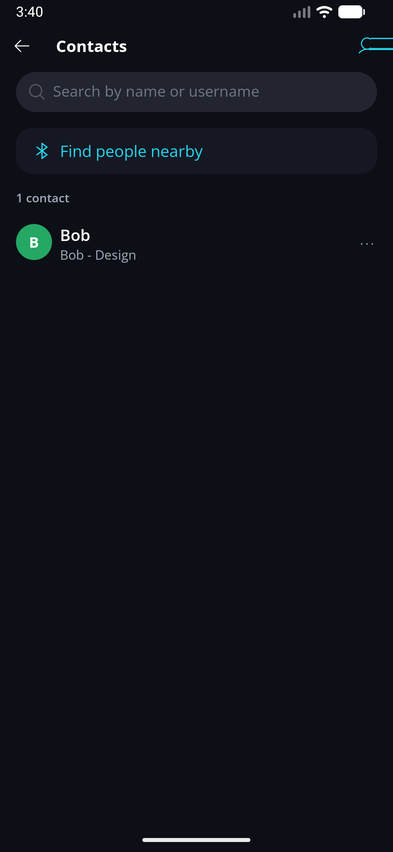
- The Contact Book on desktop. On mobile, the Contact Book list shows the contact's public display name with your alias underneath.
What stays the same?
- The alias is private. The contact and other users never see it.
- It doesn't change the contact's public display name or @username.
- If the contact changes their display name, your alias stays as you set it.
- Contacts without an alias keep showing their public display name.
- Your alias is kept if you block and later unblock the contact.
The 'Alias' option isn't available while a contact is blocked. The Blocked members list shows a blocked contact's alias on mobile and their public display name on desktop.
Removing Contacts
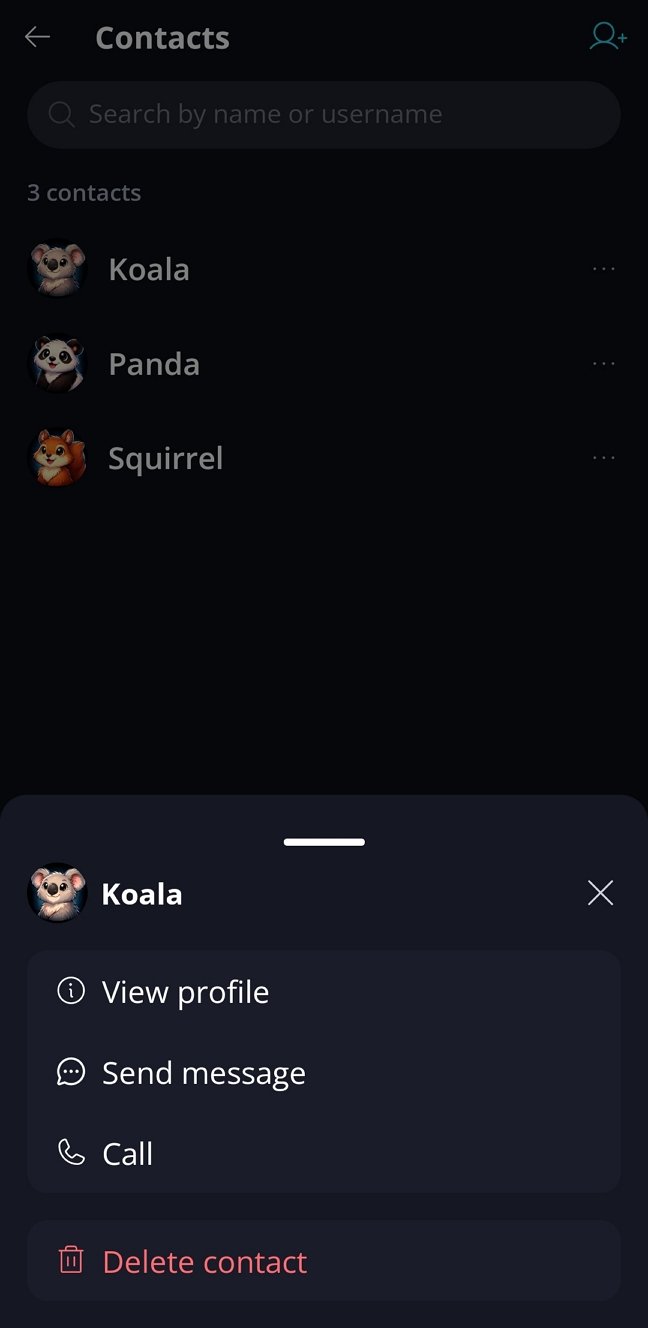
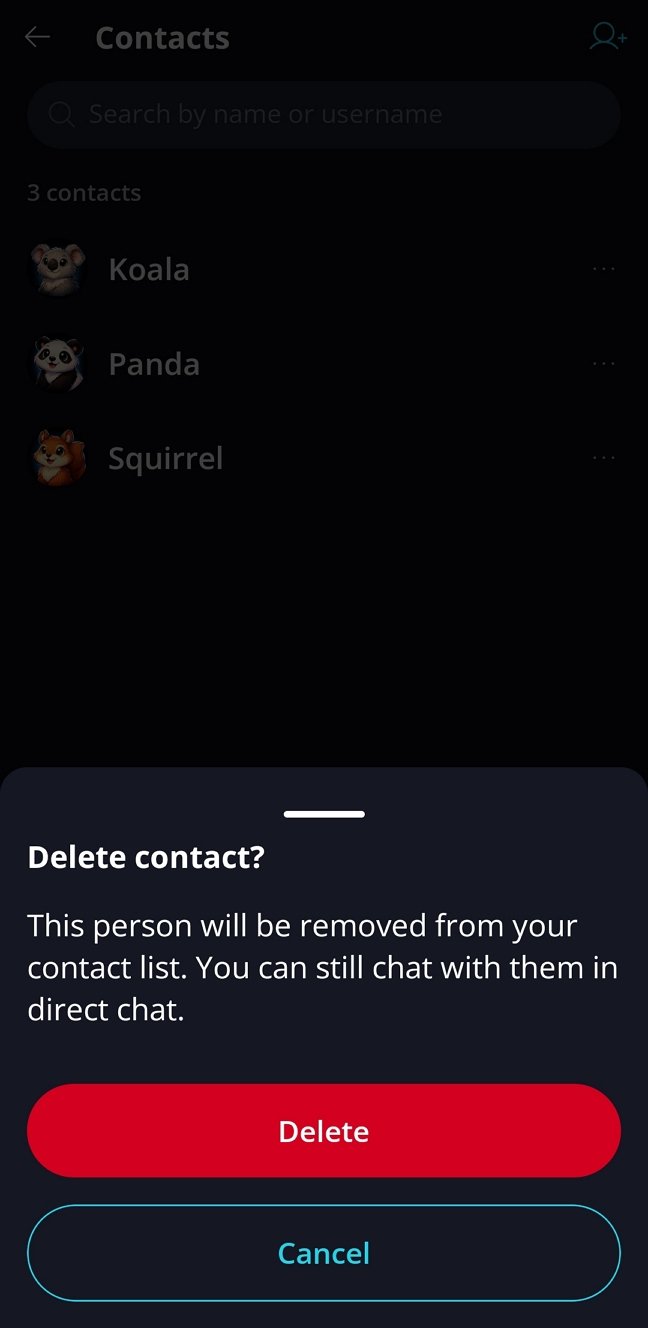
Go to Profile / Contacts to view all saved contacts. From here, you can review and remove any of them.
Please note that contacts and DM chats are separate lists.
- Removing a contact does not delete an existing DM chat
- Leaving or deleting a DM does not remove the contact