 Keet Support
Link Previews 🔗
Send a link right away and Keet adds its preview to your message a moment later. You can remove a preview from your own messages at any time.
What happens when I send a link?
You don't need to wait for a preview before sending. Paste a link, send your message, and keep chatting. Keet sends the message straight away, then fetches the link's preview in the background. A second or two later, the preview appears under your message in the chat.
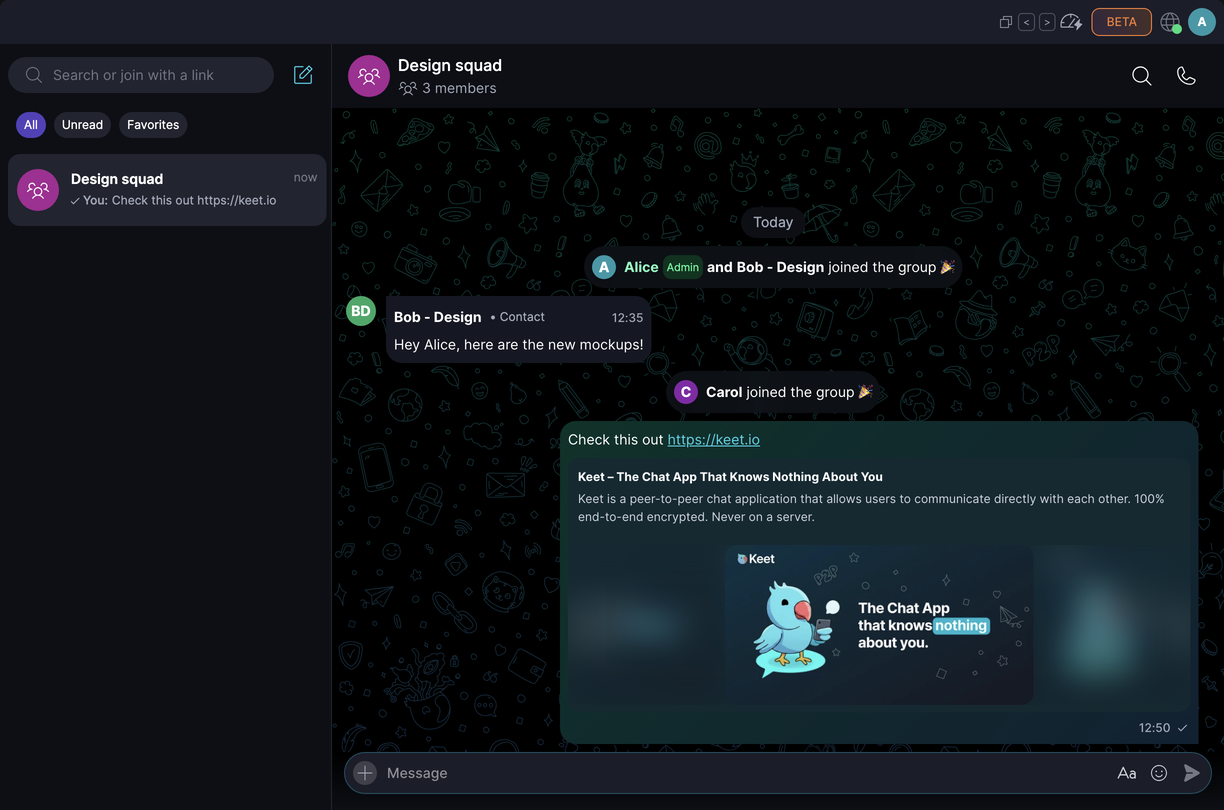
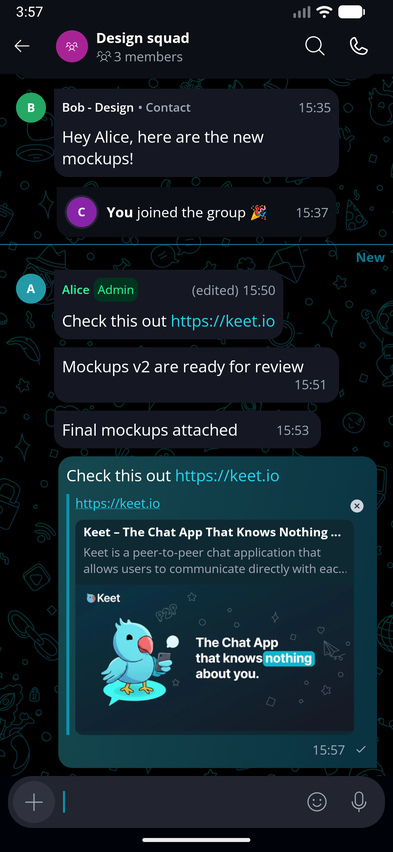
- The preview is added to the message you already sent. Keet doesn't mark the message as 'edited' when it adds a preview.
- Fetching a preview never delays sending and never freezes the app.
- If a link has no preview, or Keet can't fetch it, your message stays as a plain link. Keet doesn't show an error.
🔗 A link in your message box can already show a preview before you send. If you dismiss that preview before sending, Keet doesn't add one afterwards.
How do I remove a link preview?
You can remove a preview from your own messages. The link itself stays in the message.
Hover over the preview and click the 'X' ('Remove preview') in its top-right corner.
Tap the 'X' ('Remove preview') in the corner of the preview.
Once you remove a preview, the message shows '(edited)':
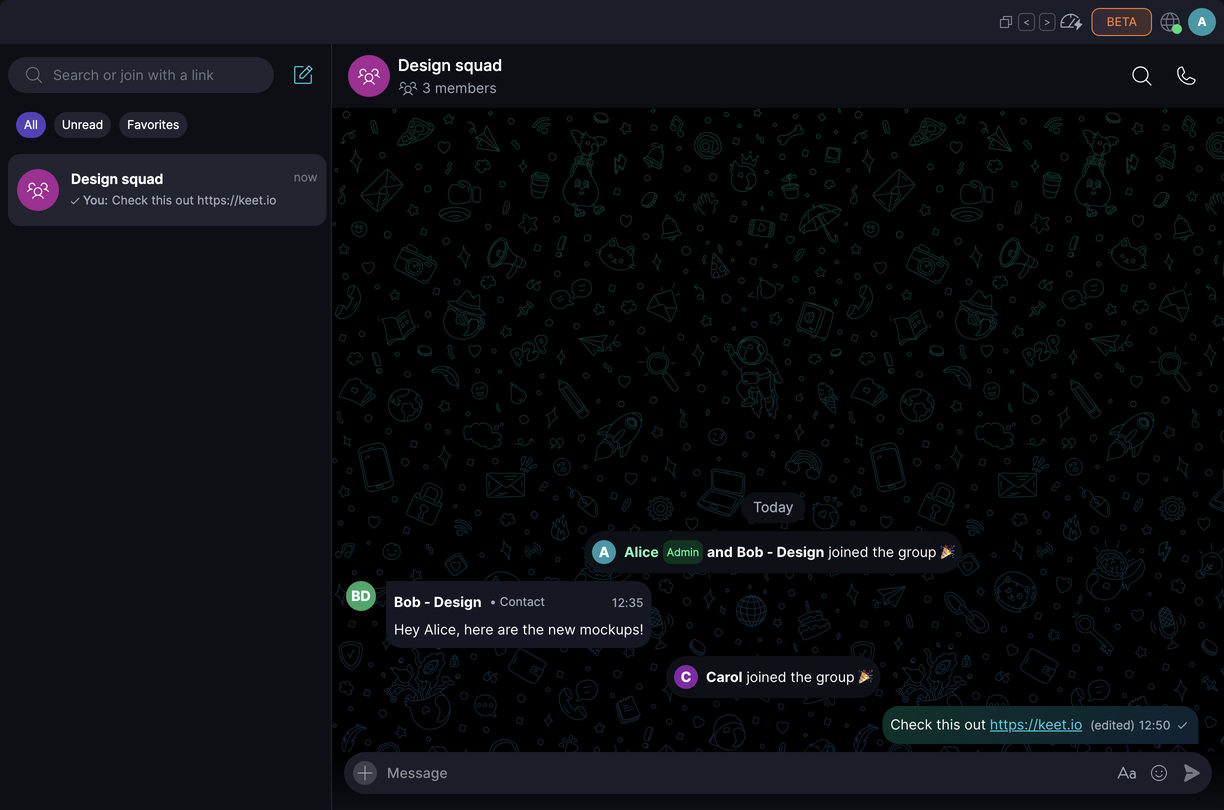
You can't remove a preview from someone else's message.
How many previews can a message show?
A message shows up to five link previews. If you send more links than that in one message, the rest stay as plain links.
Why didn't my link get a preview?
- The website doesn't offer a preview, or Keet couldn't reach it in time.
- You dismissed the preview in the message box before sending.
- Attachments are turned off in the group.
In each case the link still works as normal.