 Keet Support
Notifications
Go to 'Profile' / 'Notifications' to choose which messages notify you, pick a sound for each type, hide message previews, and set your call ringtone.
How do I manage notifications in Keet?
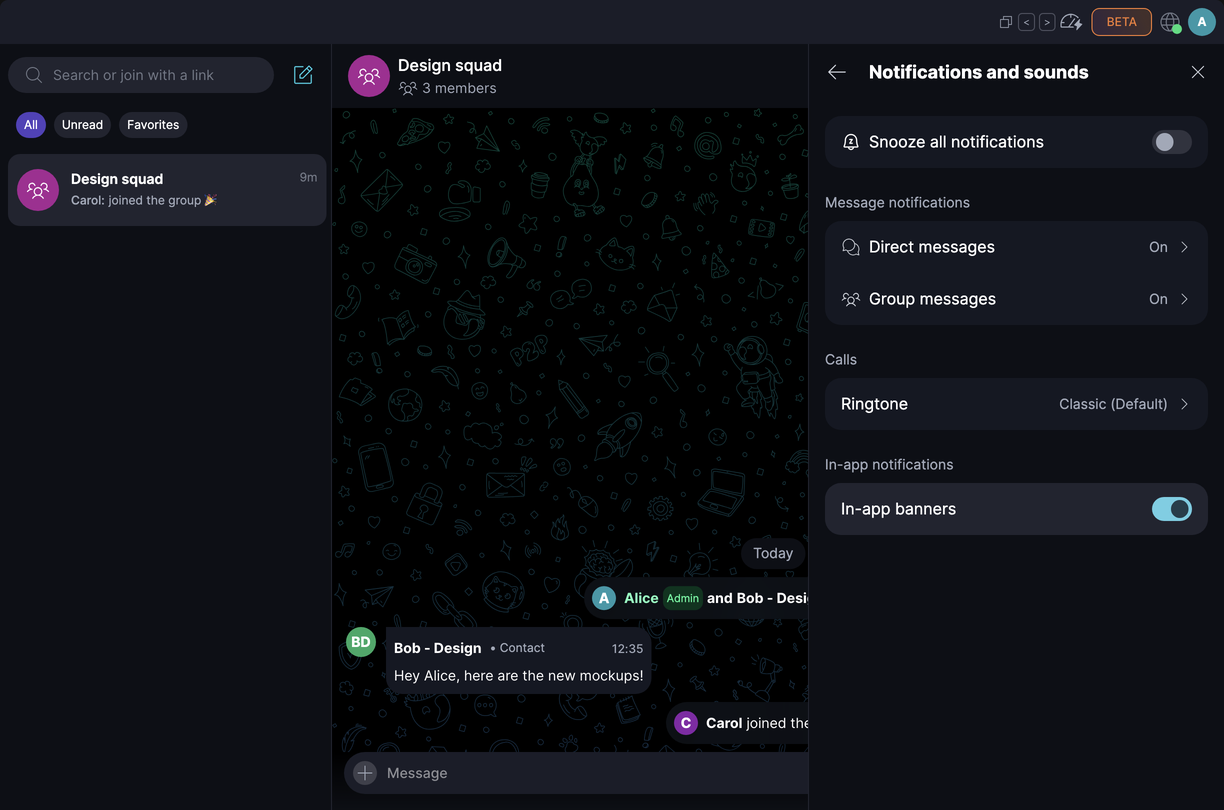
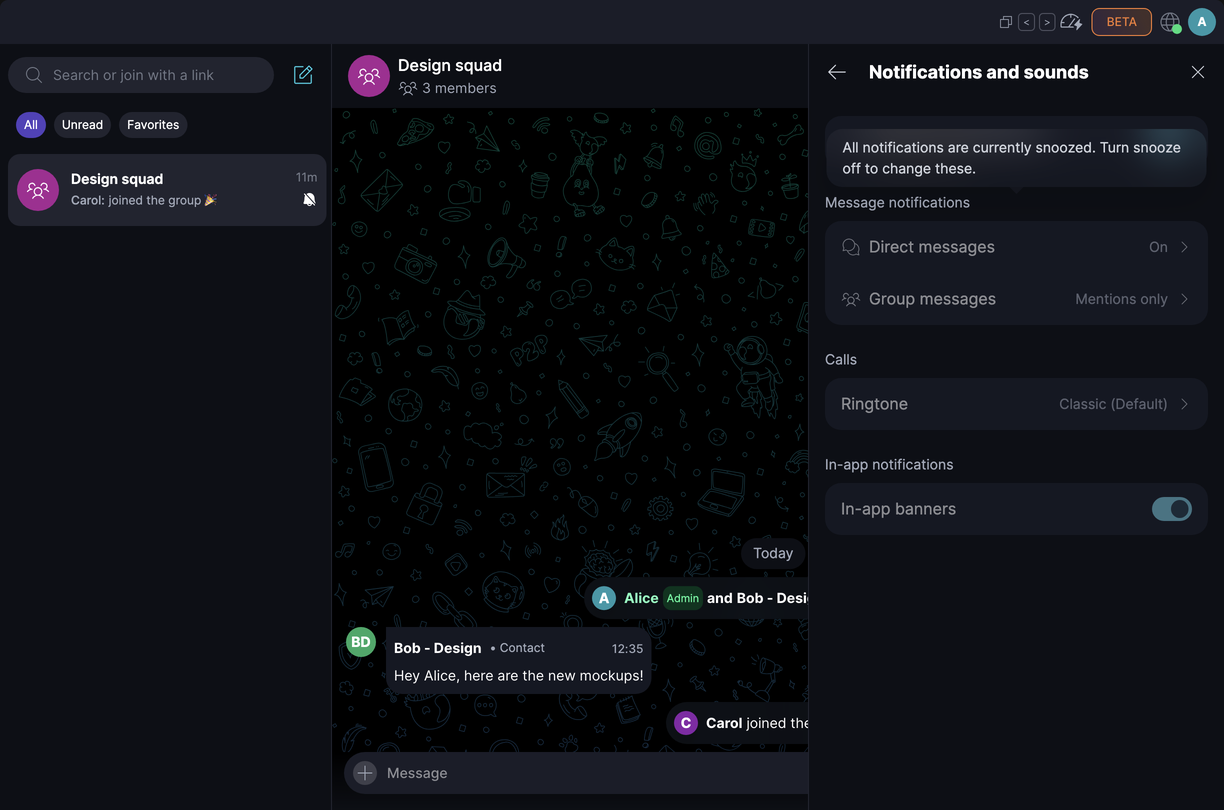
Click your avatar to open 'Profile' and select 'Notifications and sounds':
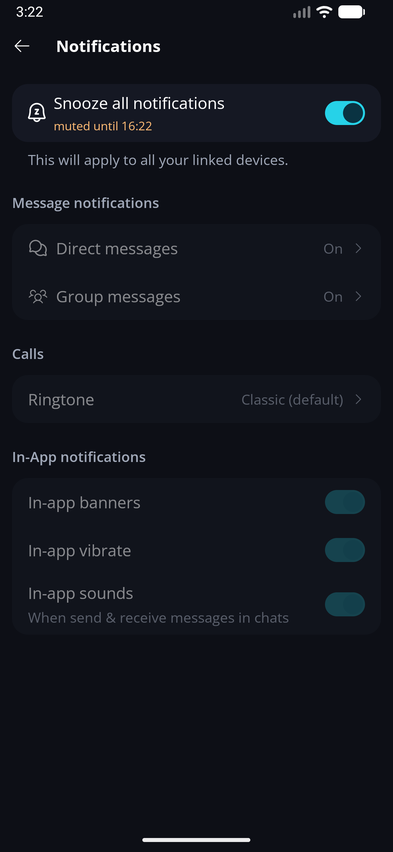
Go to 'Profile' and tap 'Notifications':
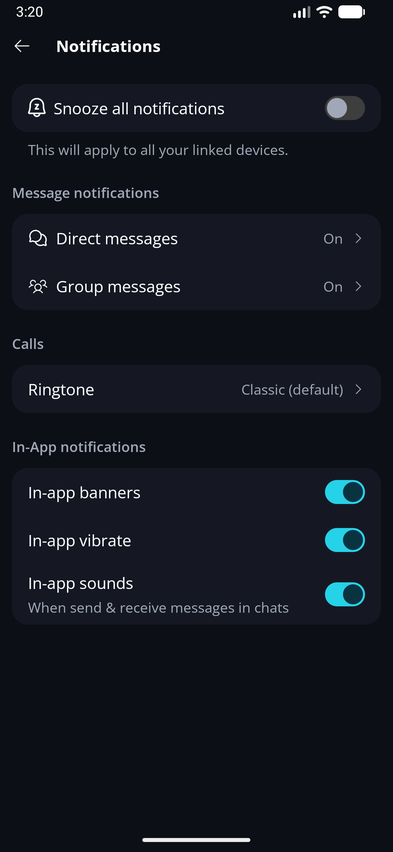
The screen is split into these sections:
- 'Snooze all notifications' - pause every alert for a set time. See Snooze Notifications.
- 'Message notifications' - separate settings for 'Direct messages' and 'Group messages'. Each row shows whether it's 'On' or 'Off'. On desktop, 'Group messages' can also show 'Mentions only'.
- 'Calls' - choose your call 'Ringtone'.
- 'In-app notifications' - control what happens while Keet is open. On desktop, you can turn 'In-app banners' on or off. On mobile, you can turn 'In-app banners', 'In-app vibrate', and 'In-app sounds' (sounds when you send and receive messages in chats) on or off independently.
How do I choose what I'm notified about?
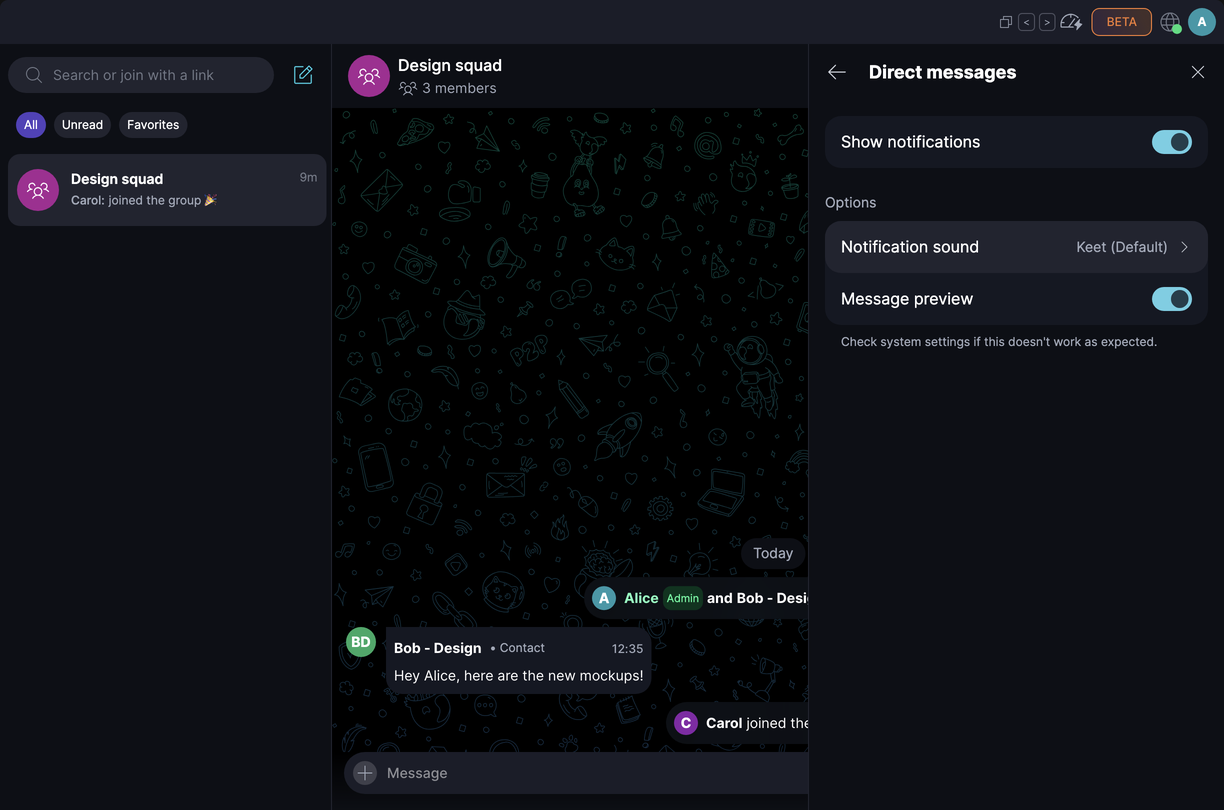
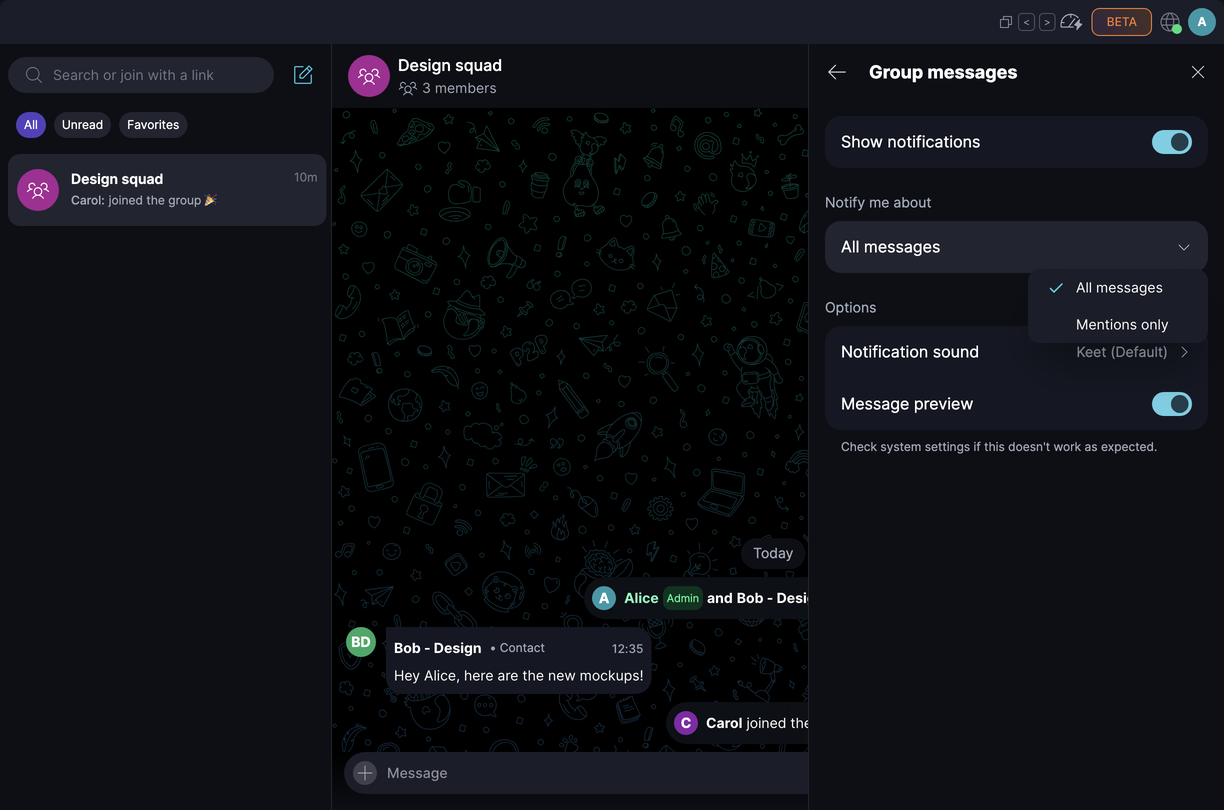
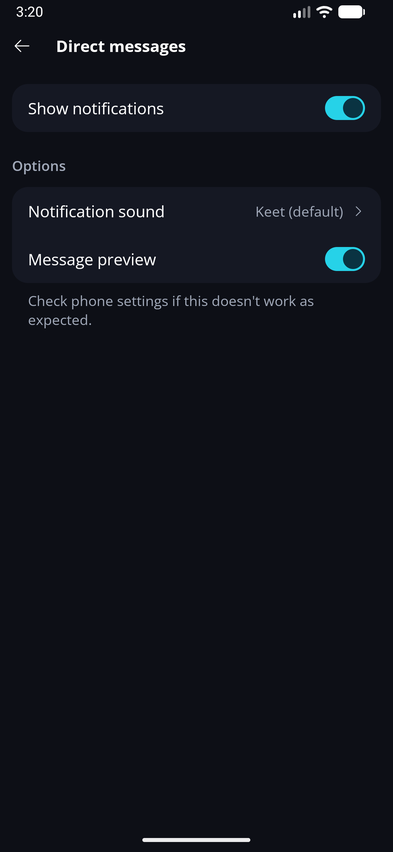
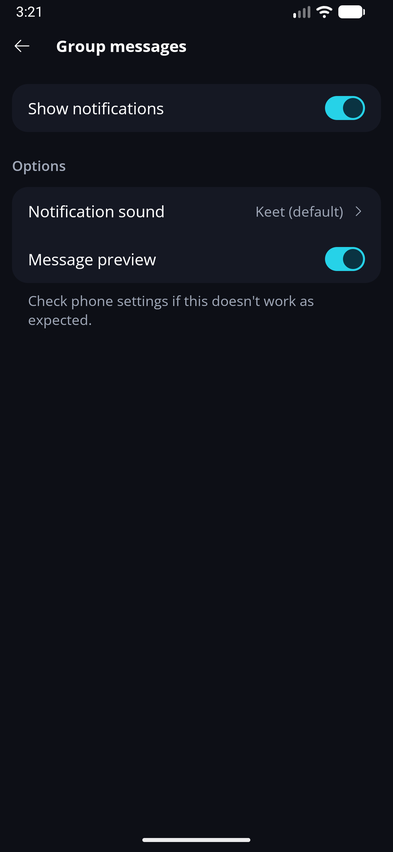
Select 'Direct messages' or 'Group messages'. Each has its own page, so you can set them independently:
- 'Show notifications' - turn notifications for that type on or off.
- 'Notify me about' (Group messages, desktop only) - choose 'All messages' or 'Mentions only'. With 'Mentions only', you're notified about a group message only when someone mentions you. This option isn't available on mobile in Keet 4.24.
- 'Notification sound' - pick the sound for that type. Select a sound to hear it, or choose 'Silent' for none.
- 'Message preview' - when off, notifications don't show the content of the message.
Reactions and new requests don't have their own notification settings yet.
How do these settings affect push notifications on mobile?
Your choices apply to the push notifications your phone shows, too:
- Turning off 'Direct messages' or 'Group messages' stops the push notifications for that type.
- Turning off 'Message preview' keeps the message content out of the notification.
- Your chosen 'Notification sound' plays for push notifications where your phone supports it.
If a setting doesn't behave as expected, check your phone's own notification settings, which take priority. See How do I allow notifications for Keet on my phone?
How do I change my call ringtone?
Under 'Calls', select 'Ringtone' and choose a ringtone. Select one to hear it. On desktop, you can also choose 'Silent' for no ringtone. Keet saves your choice and uses it for incoming calls.
What happens to these settings while notifications are snoozed?
While 'Snooze all notifications' is on, everything below it is dimmed and can't be changed. On desktop, hovering over it shows 'All notifications are currently snoozed. Turn snooze off to change these.' On mobile, the snooze row shows when it ends, for example 'muted until 16:22'. Your settings become available again once you turn snooze off or it ends.
How do I allow notifications for Keet on my phone?
🔊 Ensure push notifications are enabled in your mobile device settings for the Keet app.
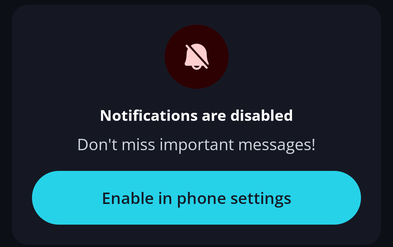
If they're turned off, 'Notifications' in Keet shows a 'Notifications are disabled' card. Tap 'Enable in phone settings' to open your phone's settings.
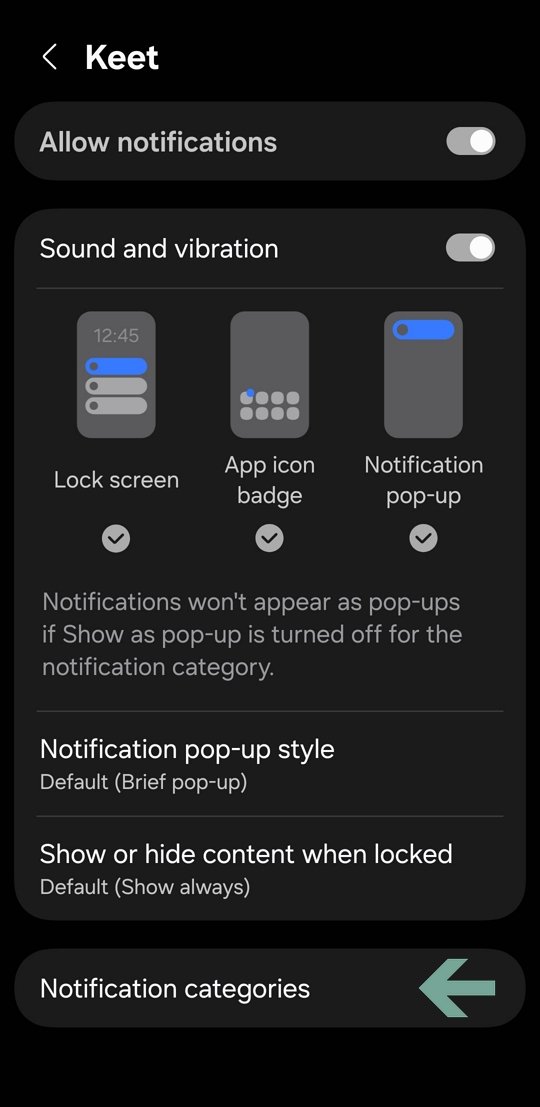
You can also open your device 'Settings' / 'Apps' / 'Keet' / 'Notifications'.
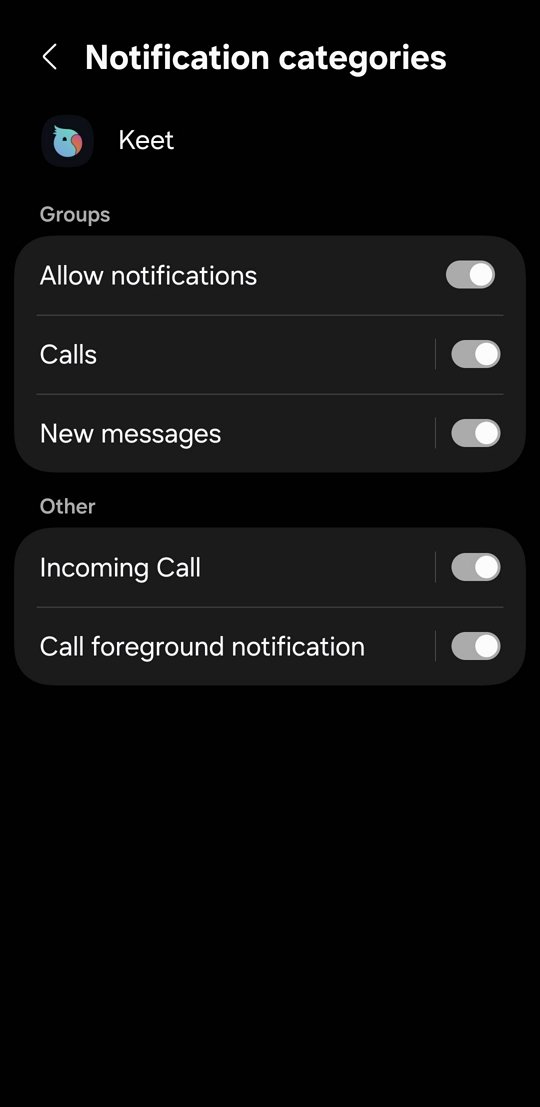
Android:
iOS:
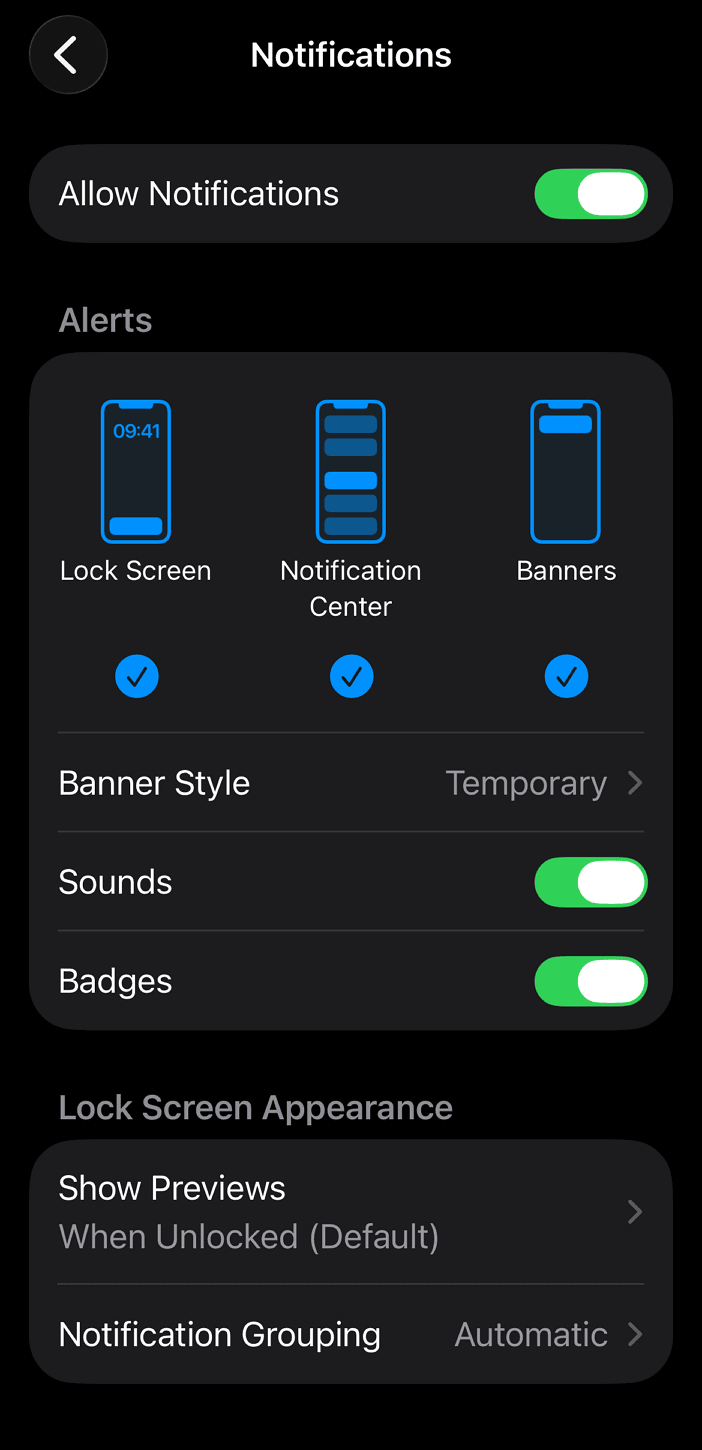
Make sure all the necessary categories are enabled; otherwise, you may miss push notifications for messages, incoming calls, or mentions.
The exact location of the Notifications menu may vary depending on your device and OS version.
Will my notification settings change when I update Keet?
No. When you update, Keet keeps your notifications on or off, your notification sound, your call ringtone, and your in-app notification choices.
There's one exception. If you previously chose to be notified only when you're mentioned, 'Group messages' stays on 'Mentions only', but 'Direct messages' goes back to notifying you about every message, because direct messages have no mentions.
New installs start with 'Direct messages' and 'Group messages' on, 'Group messages' set to 'All messages', 'Keet' as the notification sound, and 'Message preview' on.
Are notifications cleared when I read a message on another device?
On mobile, yes, for direct messages. If you use the same profile on linked devices and read a DM on one of them, Keet removes that DM's notification from your phone. Reading it doesn't trigger a new notification.
Only the notification for that chat is cleared. Notifications from your other chats stay until you read them.
What does the unread badge count?
The badge on the Keet app icon counts your chats with unread messages. Once you read a chat, it stops counting.
A chat doesn't count while:
- it's muted, until the mute ends if you chose a time
- you've turned on 'Snooze all notifications', which keeps all of your chats out of the count
When you unmute a chat, or a snooze ends or is turned off, a chat that's still unread counts again.
Why am I not receiving notifications?
- Check that 'Show notifications' is on for 'Direct messages' and 'Group messages', and that 'Group messages' isn't set to 'Mentions only' if you want every message.
- Check that 'Snooze all notifications' is off and that the chat isn't muted.
- Check that notifications from Keet are enabled on your device and that your internet connection is stable.
- Re-enable the notification for Keet in 'System' / 'Settings' / 'Apps' / 'Keet' / 'Notifications' by toggling 'Allow notifications' off and on again.
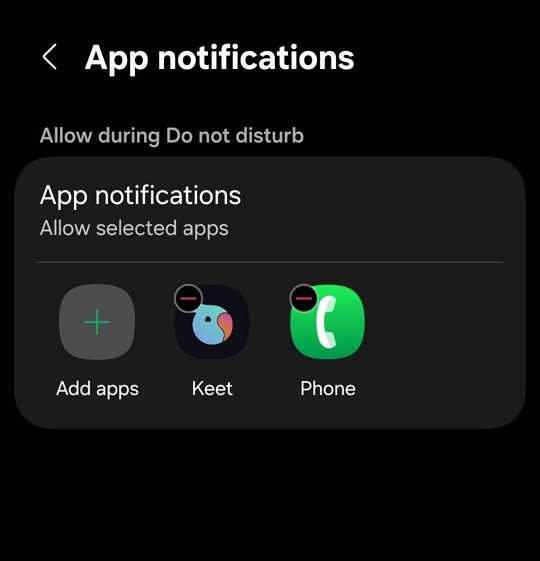
- Make sure your device isn’t in Silent, Focus, Do Not Disturb, Reduce Interruptions or Sleep mode, etc, or add Keet to the exceptions for these modes.
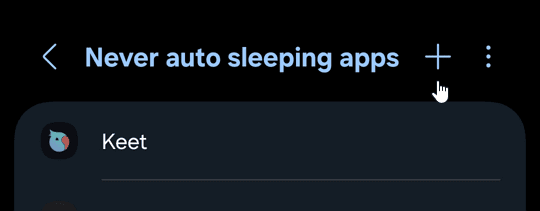
- Ensure Keet isn’t restricted by your device’s background activity or battery optimization settings (sometimes referred to as sleep/deep sleep mode).
- Make sure you’re running the latest version of Keet, as updates can improve notification reliability.
Can I mute group chat notifications for a particular time period?
Yes - see Mute a Chat to mute a specific chat for 30 minutes, 1 hour, 2 hours, 12 hours, 1 day, or forever. If you want to pause alerts for every chat at once instead, you can snooze all notifications app-wide instead.
If you are experiencing further issues, please submit a bug report to the 'Bug Bandits' group and our team will look into it.